
 Cyberduck
 Mountain Duck
 CLI
Azure Blob Storage#

Massively scalable object storage for unstructured data
Connecting to Azure Blob Storage#
Hostname#
Edit the hostname to connect to your account in the format <account>.blob.core.windows.net.
Warning
Azure Files Storage is not supported.
Credentials#
Account and Key#
Obtain the login credentials Storage Account Name and Primary Access Key from portal.azure.com. You can find the keys in the section Access keys.
Microsoft Entra ID#
Authenticate with your Microsoft Entra ID account instead of using an access key. Access to blob data is then authorized with Azure role-based access control (Azure RBAC) and an OAuth 2.0 access token, so no storage account key must be shared.
Choose the Azure (Microsoft Entra ID) connection profile when creating a bookmark. The profile is bundled by default and can also be installed from Preferences → Profiles.
Edit the hostname to connect to your account in the format
<account>.blob.core.windows.net.No credentials must be entered for opening a connection, but instead you need to log in to your Microsoft account and grant access in your web browser after choosing Connect. Allow to “Open Cyberduck” in your web browser to submit the authorization code. Subsequent connections will not require authorization, unless the refresh token expired due to inactivity.
The OAuth tokens are saved in your keychain separately for every storage account, using the storage account name as the username of the bookmark.
Note
Cyberduck uses the permission Get Account Information to detect whether the storage account has a hierarchical namespace enabled. Without it, connecting fails with AuthorizationPermissionMismatch. The signed-in user must be assigned a data role such as Storage Blob Data Contributor and the permission to read the account information. Follow the steps in Set Up Permissions for Microsoft Entra ID Authentication to Azure Blob Storage. See Troubleshooting.
Cyberduck CLI#
You can list all containers with Cyberduck CLI using
duck --username <storageaccount> --list azure://<storageaccount>.blob.core.windows.net/`
For a storage account named kahy9boj3eib that would be
duck --username kahy9boj3eib --list azure://kahy9boj3eib.blob.core.windows.net/
Refer to the Cyberduck CLI documentation for more operations.
Access Control (ACL)#
You can edit ACLs in File → Info (macOS ⌘I Windows Alt+Return) → Permissions. To make objects in a container publicly accessible, choose Everyone → READ. Note that this applies to all files in a container.

Containers#
To create a new container in your account, browse to the root and choose File → New Folder… (macOS ⇧⌘N Windows Ctrl+Shift+N).
Hierarchical Namespace (Azure Data Lake Storage Gen2)#
Storage accounts with a hierarchical namespace enabled are supported. Cyberduck detects this when connecting and uses the Data Lake Storage API for folder operations. No configuration is required.
Keep using the Blob Storage hostname <account>.blob.core.windows.net. The Data Lake Storage hostname <account>.dfs.core.windows.net is not required.
With a hierarchical namespace, folders are real directories instead of placeholder blobs, so the following operations use the Data Lake Storage API:
Listing folders and reading attributes
Creating folders
Moving and renaming files and folders
Copying files and folders
Deleting folders including their contents
Uploads, downloads and metadata still use the Blob Storage API.
When connecting with Microsoft Entra ID, the permission Get Account Information is required to detect the hierarchical namespace. Access to files and folders is evaluated with Azure RBAC data roles first, and with POSIX-like ACLs if no role grants access. See Set Up Permissions for Microsoft Entra ID Authentication to Azure Blob Storage.
Note
Editing POSIX ACLs of files and folders is not supported. Assign a data role such as Storage Blob Data Contributor or manage ACLs in the Azure Portal or Azure Storage Explorer. To connect to the same account with SFTP, see Connect to Azure Blob Storage with SFTP.
Blob Type#
Uploads are stored as append blob type by default. You can use the hidden configuration option azure.upload.blobtype which allows the values BLOCK_BLOB, PAGE_BLOB and APPEND_BLOB.
Metadata#
You can edit standard custom metadata. Choose File → Info → Metadata to edit custom headers.
Default Metadata#
Currently only possible using a hidden configuration option you can define default headers to be added for uploads. Multiple headers must be separated using a whitespace delimiter. Key and value of a header are separated with =. For example, if you want to add an HTTP header for Cache-Control and one named Creator you would set
azure.metadata.default="Cache-Control=public,max-age=86400 Creator=Cyberduck"
Shared Access Signature URLs#
A private object stored in Azure Storage can be made publicly available for a limited time using a signed URL. The signed URL can be used by anyone to download the object, yet it includes a date and time after which the URL will no longer work. Copy the signed URL from Edit → Copy URL→ Signed URL.

Note
Currently only signed URLs with a validity of 24 hours are available.
Access Logs#
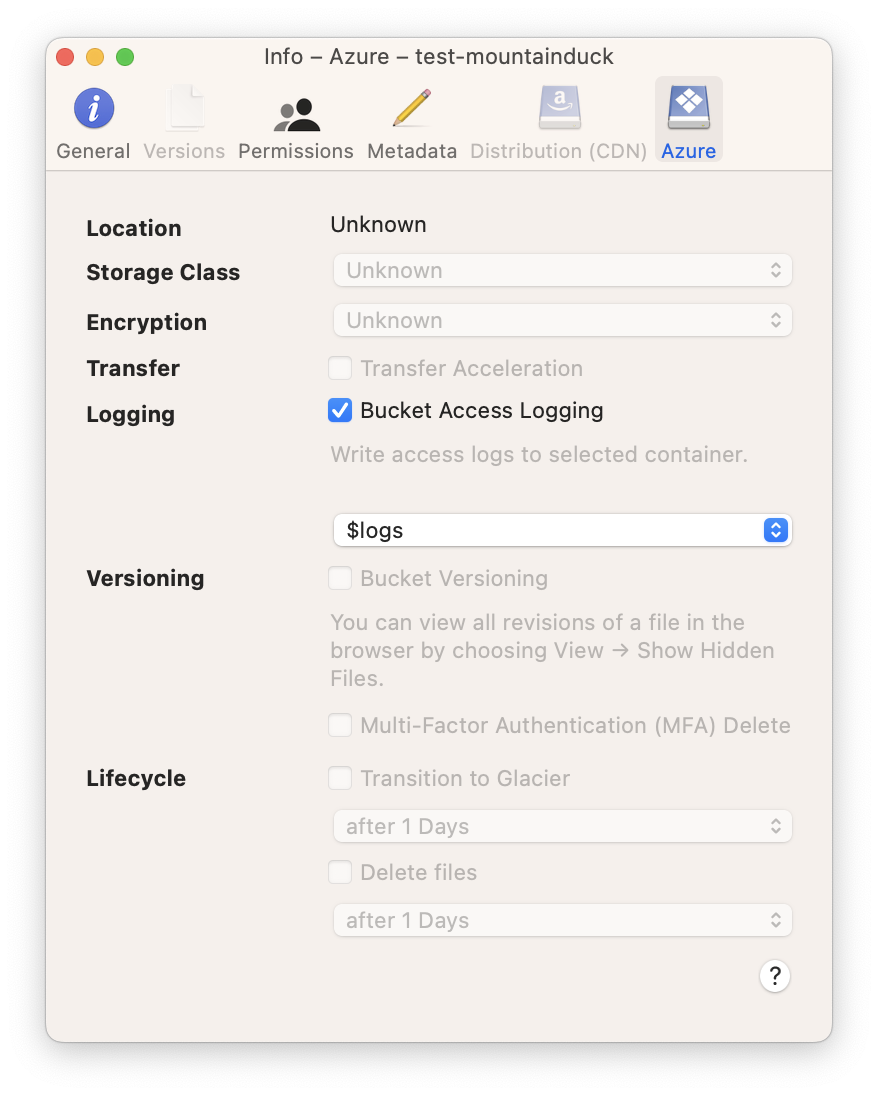
Configure access logging for buckets in the Info panel.
Limitations#
Container and blob naming conventions.
Editing POSIX ACLs is not supported for storage accounts with a hierarchical namespace.
CDN configuration is currently only possible using the web interface.
Problems#
One of the Request Inputs is out of Range#
Please follow the Naming and Referencing Containers, Blobs, and Metadata guidelines.