
SMB
SMB (Server Message Block) is used to access Windows File Shares or a Samba Linux Server.
Connecting
Important
Cyberduck 8.7.0 or later required
Mountain Duck 5.0.0 or later required
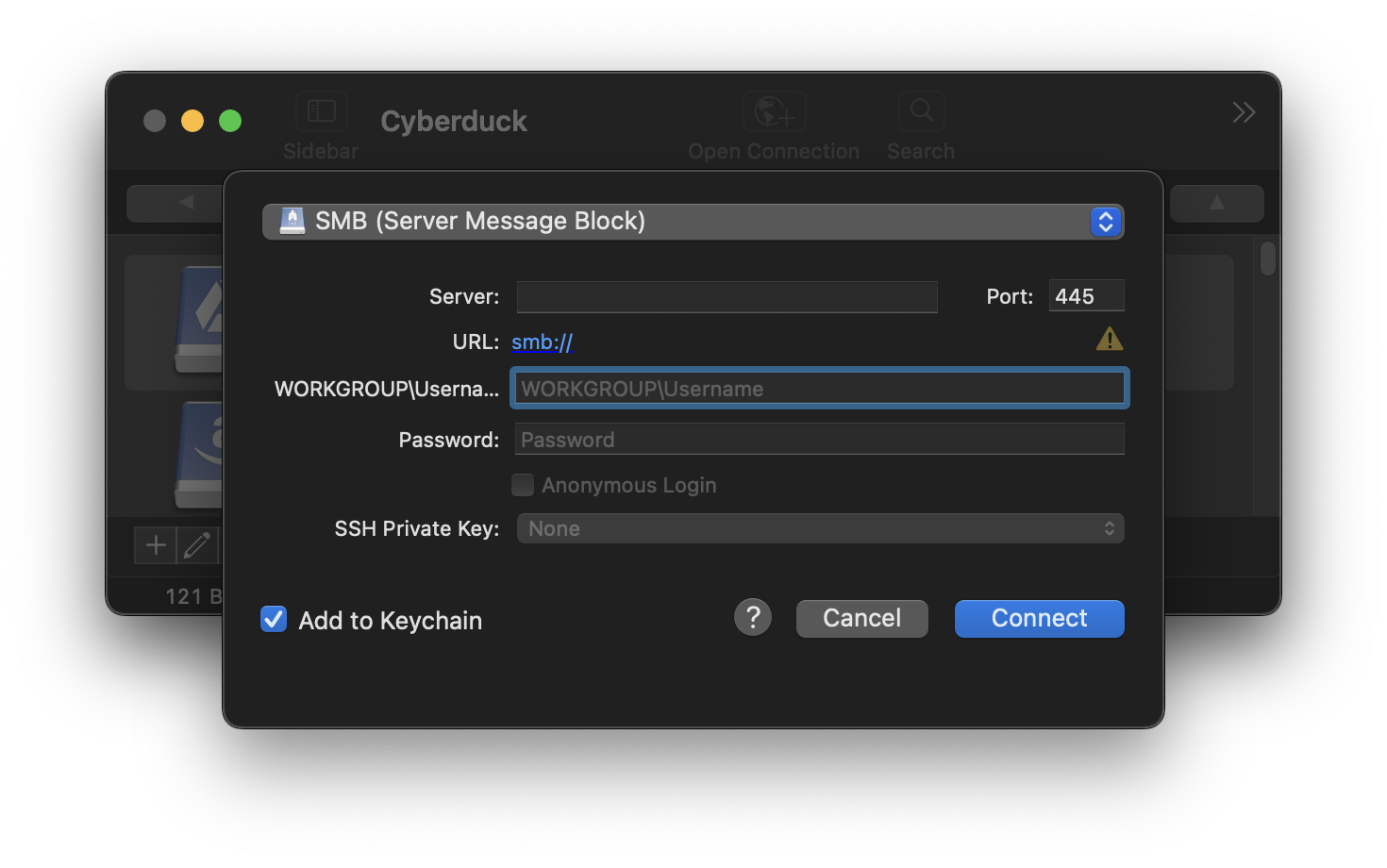
To connect to a SMB server, choose SMB (Server Message Block).
Authentication
Username and password must be provided for authentication using NTLM. The optional domain name defaults to WORKGROUP
and can be customized as part of the username in the format REALM\username in the Username input field when adding a
bookmark. Depending on the server setup, this can be
COMPUTERNAME\usernameNETBIOSDOMAINNAME\username
The default domain can be set using the hidden configuration option
smb.domain.default=WORKGROUP
Share Name
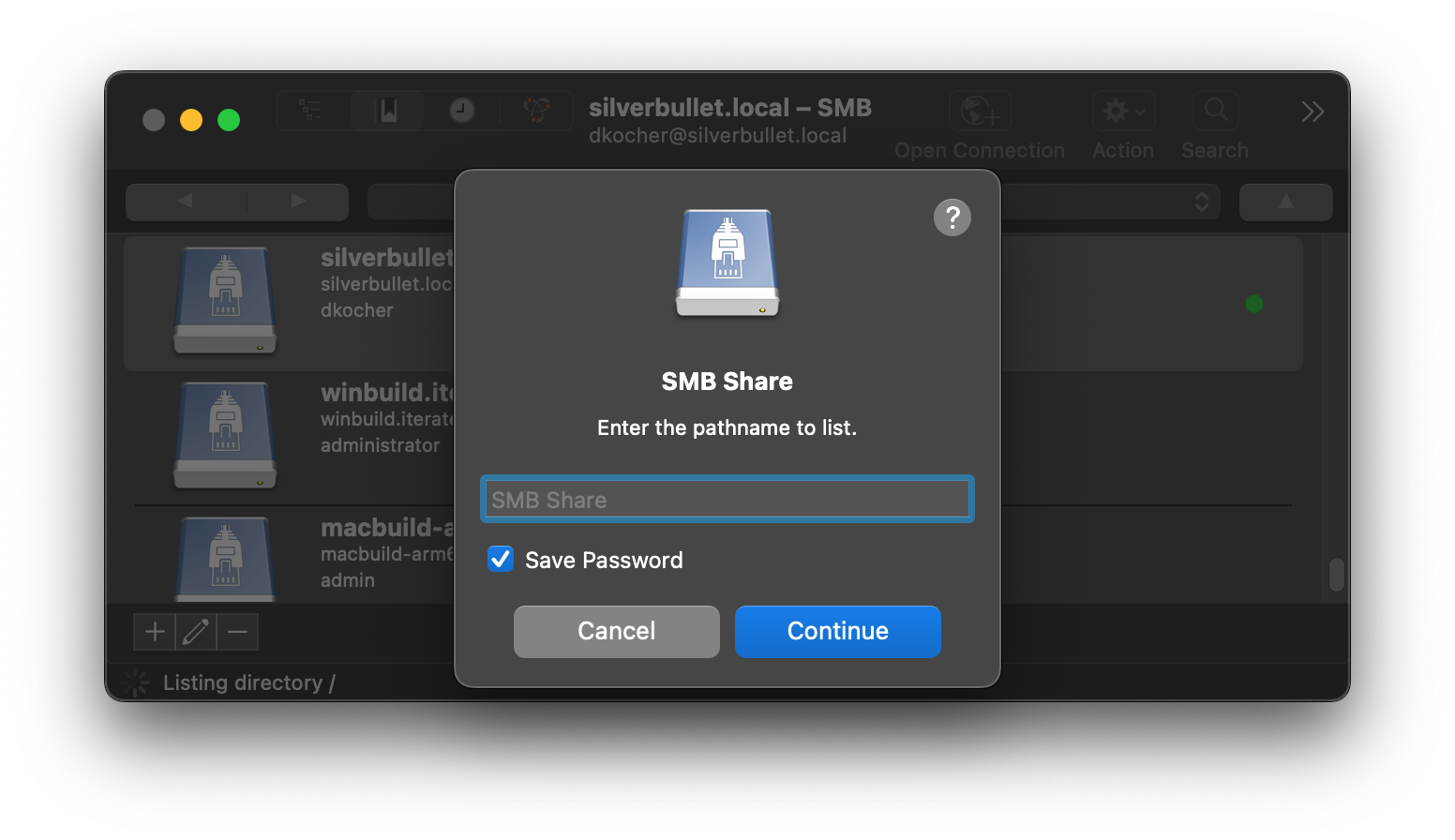
To connect to a specific share, you can configure a Path in the bookmark. When omitted an attempt is made to list all available shares from the server. On failure retrieving share names from the server, a prompt is displayed to enter the share name when connecting.
Interoperability
SMB protocol support has been tested with connections to the following server implementations
Windows 2016 Server (
SMB_3_1_1dialect)Windows 2022 Server (
SMB_3_1_1dialect)Linux Samba (
SMB_3_1_1dialect)macOS 13.5 (22G74) (
SMB_3_0_2dialect)
Tip
To connect to macOS, enable System Settings → Sharing → File Sharing → Share files and folders using SMB and Window File Sharing for selected users.
Encryption
By default, SMB connections are secured by signing and encrypting requests when supported by the server using SMBv3. Alternatively, use the SMB (No Encryption) profile with support for signing and encryption disabled from Preferences… → Profiles.
Cyberduck CLI
You can list shares with Cyberduck CLI using
duck --list smb:/server/share/
Limitations
Copying or moving files between shares is not supported